Clone Tool Properties
 The Clone tool is useful for duplicating
objects or removing an irregularity in the current layer.
Activate the Clone tool by clicking the button in the Tools panel or by tapping the Shift + C shortcut.
To clone, hold the Alt (on Windows) or Option key (on macOS) and position the pointer on the source you wish to clone. Then click to set the starting point. Release the Alt (Option) key and move to another part of the layer to start cloning.
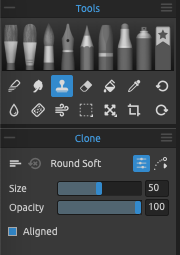
Size - Select the size of the "Clone" tool (1-100).
Opacity - Set the opacity of the "Clone" tool (1-100).
Pressure - Determines the pressure applied to the brush (1 to 100). This slider is provided for those using a mouse or a stylus that is not pressure-sensitive.
Rotation - Determines the angle of the rotation of the brush (0° to 360°).
Note
The Pressure and Rotation sliders are hidden by default. You can view them anytime in the Properties panel menu > Show Sliders.
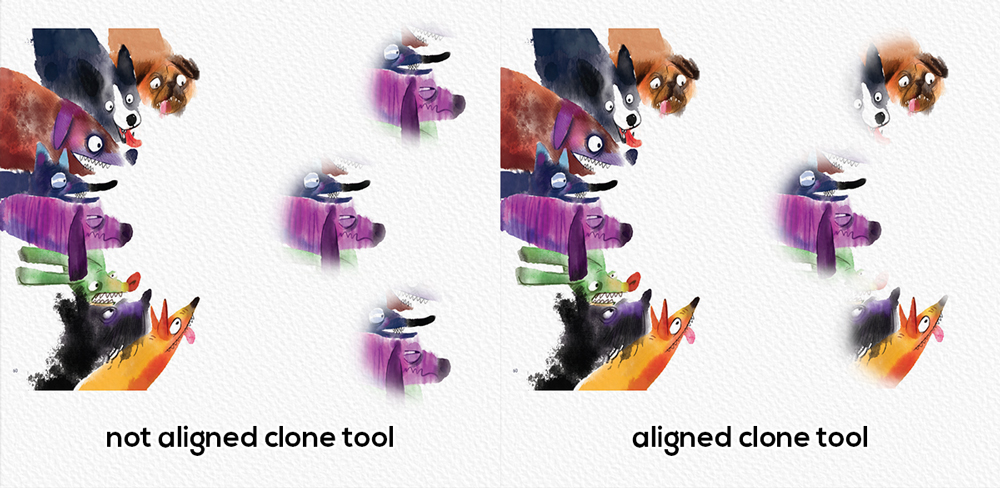
Aligned - Enable this option if you want to paint with the most current sampling point whenever you stop and resume painting. Deselect the Aligned option to paint starting from the initial sampling point no matter how many times you stop and resume painting: