

The release day of Amberlight 2 is approaching. We’ve picked the most innovative features you can expect in the new upgrade:
Animation mode
To easily animate and change frames over time we added a new panel - Timeline:

In this panel, you’ll be able to manipulate keyframes and play the animation. You can save the animation either as a sequence of images in JPG, BMP or PNG files with alpha channel or as a video. A great bonus of animating in Amberlight is the simplicity of use, so not only professionals will be able to do dramatic video recording, but also enthusiasts will quickly learn how to animate in Amberlight as well. When creating a new scene you can easily set the desired FPS and if the animation should be looped or not. FPS refers to frames per second or how many frames need to be drawn for every second that goes by in real time. You can set the Playback looping if you want the video to create a continuous repetitious video outcome.
Better editing of fields
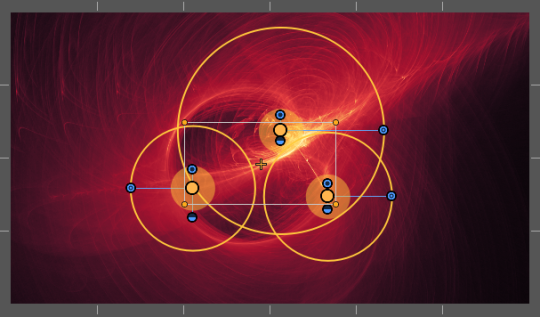
We added many essential features to edit fields mode - you can now copy a field’s parameters to another field, duplicate fields, or select all fields at once. You can also set a number of grids to position the fields more precisely. Multi-selection tool will ease the editing as you can quickly scale, pan, and rotate the selected fields:
Undo & Redo
In Amberlight’s first version, the Undo function was not indeed necessary due to the character of the app and the fact that the scene was re-rendered with every change. In the new version, there are many added new features that the Undo & Redo became inevitable functions to have.
Preferences Panel & Custom Shortcuts
You can set a variety of your own Preferences - choose your own custom keyboard shortcuts or set the scaling for the app’s interface. You can also choose whether the New Artwork dialog should open at the start-up or set the compressions of .jpeg files. With Amberlight 2 we’ll introduce a feature to set the maximum memory used which we’ll implement in other our apps too.
Modifiers
Using the Modifiers - Variations and Waves - you can experiment with the final look of the scene. We’ll talk more about Modifiers in the next blog post, so stay tuned!
In case you haven’t seen Amberlight 2 in action yet, watch our teasing video:
Enjoy!
Your Escape Motions Team

What do you think?
0 Responses
0
Upvote
0
Funny
0
Love
0
Surprised
0
Angry
0
Sad
Sign in to comment!
OK after much exploring I now have my first animation completed. Problem is, though this discussion indicates animation can be saved as a video, the file menu does not show that as a save option. So I need to know how to find that option.
Help please.
Hi L. Cleveland, to save a video you need to render Amberlight's scene first. Open your .amb file with keyframes on the timeline, then go to menu Scene -> Final render, set the path, filename and video format as well as quality settings and hit Render. The more steps you set for each keyframe to render and the higher quality, the longer will the scene be rendered. After the final render is finished, video will be saved to the path you selected in the video format you set. Let me know if you have any more questions regarding this or refer to the manual accessible via menu Help -> Help.
Thanks for your quick response. I will copy your reply to keep as a reference. I had been searching for tutorials since I first got Amberlight 2, and there just have not been any popping up that are about what I was looking for. So because the application is not that hard to learn I have been exploring it on my own. There are a few tools and capabilities I have not been able to find, and this little tidbit was one of them.
Another one that is related to the animation process is that I cannot get the render to go past 25 frames. I know there has to be a way to do this, because the Promo video I found on YouTube clearly goes far longer than 1 second. I am using the 25 FPS setting, but would like to go to 30 FPS. Also 1 second videos are like ZIP! Done! Leaves a person wondering what they just saw! LOL
Again, Thank you!
Cheers!
How many keyframes does your animation have? In Final render you can also set Start frame and End frame, so please check whether the end frame is set above 25. Was this the issue?
Have not yet had the chance to get back into it with Amberlight. I am currently working to convert some files for a friend. As soon as I get back into Amberlight, I'll check to see what the final render settings are.
Just one question; Are you saying that the Animation Render button is not the final render? If so that would explain why I cannot get past 25 frames. I set the the frames to be enough for 5 seconds, and that is 125 frames at 25 fps. The top fps is from what I have found 30 fps, but when I tried that it still just rendered 25 frames. I'm thinking that 25 is all that Amberlight's memory allocation can handle, and that the actual final render can handle more due to the path the animation is being saved to. Would that be correct?
Anyway, I'll do that as soon as I can get back into it.
Thanks again for all your help.
'Render animation' serves only for preview purposes. You don’t have to render animation preview before running Final render.
Render animation feature is a compute-intensive operation and is limited by your computer's memory. I suggest you to set 'Raster' of the 'Render Animation' to higher values to get just an approximate look of the animation much quicker, therefore no memory issues should occur. Don't worry, this is not related to Final render.
Let me know if this helps.
Will do ASAP. The files I am working to convert are being stubborn, so it is taking longer than I expected to convert them.
I do promise that once that is done, I'll get back into Amberlight 2 and try all of your suggestions. As for the Render Animation feature, though it is helpful to have a good preview, as long as the final render can give me a full chosen length video, that will be fine with me. No need to try and increase the length of the preview. All I will be using the preview for is to ensure that the animation is doing what I want it to do.
Again, thank you for all of your help.
Hope you having a good day, and if you are a U.S. citizen, Happy 4th!
Where can I find tutorials for Amberlight 2?
Hi Lawrence, you can refer to Amberlight 2 manual which is available from the top menu: Help -> Help. If you have any questions regarding the program, please let us know at [email protected].
Thanks. I saw that but, unless I missed something, it was more like a map of the buttons and workspace rather than an explanation of how to do things. I weill take anothe look.
ljd
I am wanting to do an animation showing the image i create pulsating through its colors. I've looked for a tutorial on how that is done, but cannot find any. My online search skills are not that great, so I would certainly appreciate any help finding a good tutorial for animating in Amberlight 2.
Hello L., thank you for getting in touch!
It is not yet possible to animate colors in Amberlight 2. Animation is available for fields and their parameters at the moment.
Regards,
Peter
Thank you Peter for your response.
So if I am understanding your reply:
"It is not yet possible to animate colors in Amberlight 2.", animating colors is a planned development for a future build of the program? If so, I would apreciate notification of the release of that particular build.
Thank you.
Yes, we'd like to implement color animation in Amberlight in the future.
Feel free to subscribe for news from us at the top right corner of this page. No worries, we don't spam. ;)
Have a great day,
Peter
Thank you for telling me that! I'm now subscribed, and look forward to whats in the newsletter.
Cheers!